See booking from the other side
In the first guide, we set up Anna’s schedule and a haircut service. Now we’ll follow her client from the booking link to confirmation. Use the same steps to check your own page before sharing it.
Clients only need a browser. There’s no need to install an app or create a web dashboard account.
Open the client booking link
Open the public booking link you copied from Share after selecting a schedule and the Web option. It takes clients to the business’s services, rather than the owner’s dashboard.
If you don’t have a link yet, start with setting up your web dashboard. For a test, open the link in a private browser window to see the page without a saved client sign-in.
Check the business name, description and address or online meeting format. Clients should be able to tell who they’re booking with and where the appointment will take place.
Choose a service, date and time
On the Service step, select the service you want. Check its name, duration and price: these help clients decide whether the appointment suits them.
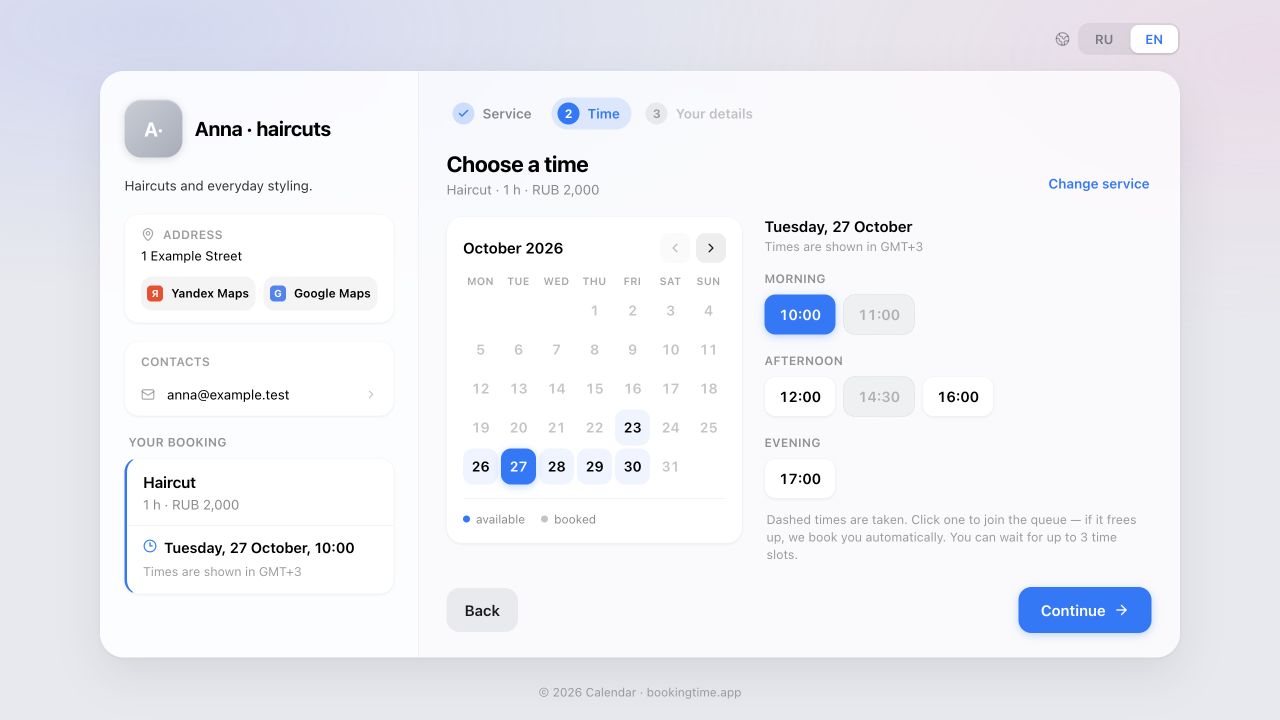
On the Time step, choose a date and an available time. If there are no suitable openings that day, try another date. Use Change service to return to the service selection.
Continuing our example
Haircut · 60 minutes · RUB 2,000
The client chooses Tuesday at 10:00. The schedule needs enough free time for the entire service, until 11:00.
Look for the “Times are shown in…” label. Use the timezone shown there, especially for online appointments or when the client is in another city.
Enter your contact details
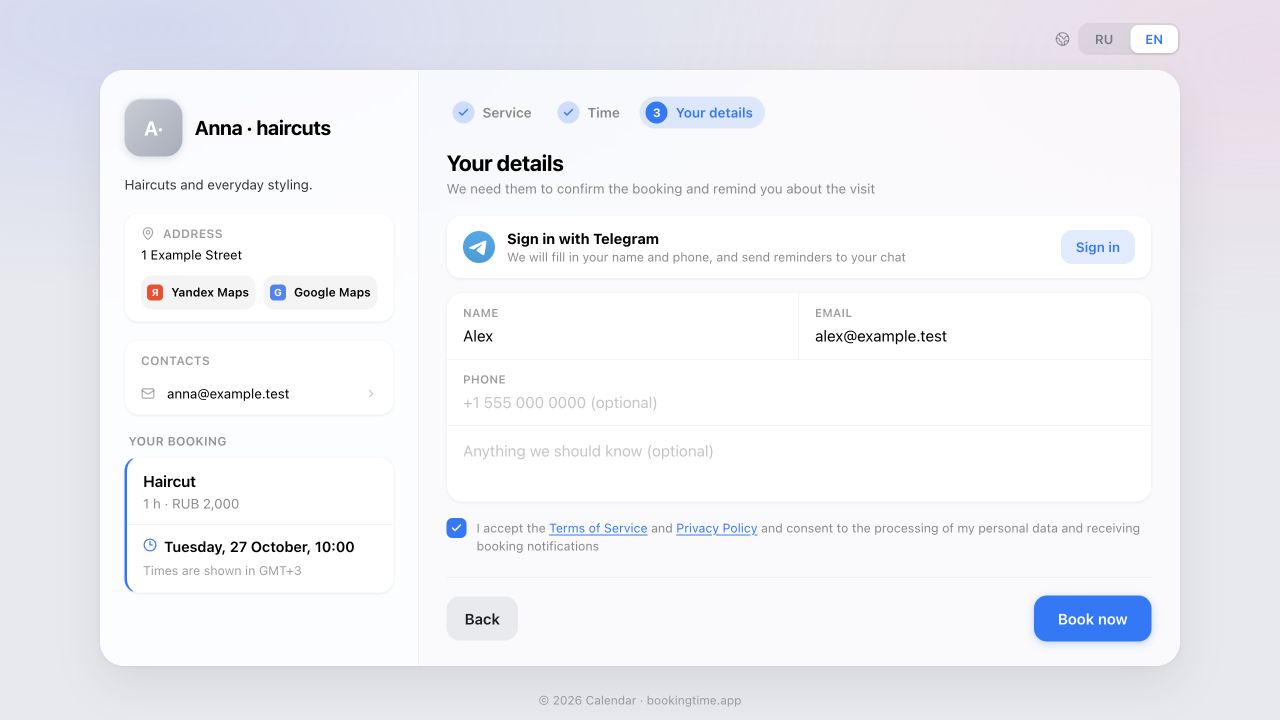
On the Your details step, enter your name and email address. Email is required for a regular browser booking and is used to send booking details. Check the address before submitting.
A phone number may be required, depending on the business’s settings. You can leave optional fields blank and use the comment field for any requests about the appointment.
Clients can also sign in with Telegram and confirm the sign-in in chat. Once Telegram is successfully connected, email becomes optional. Still enter an email address if you want a message with a link to manage the booking.
Check the service, date and time, and read the Terms of Service and Privacy Policy. Submitting the form requires consent to data processing and booking notifications. Then select Book now.
Wait for the result and check the status
After submitting, read the heading on the result screen. It depends on how the business confirms appointments.
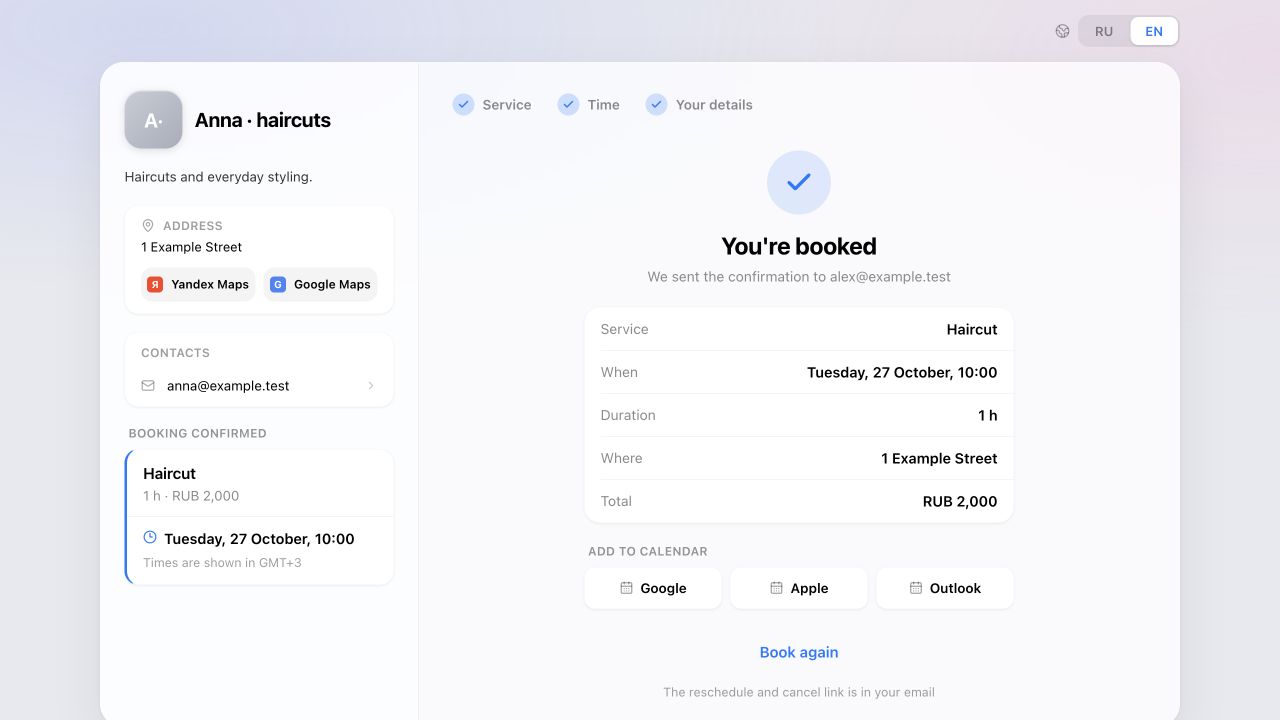
- “You’re booked”
- Your booking is confirmed. Check the service, date, time and location. If you provided an email address, a confirmation is sent there.
- “Request sent” · “Awaiting confirmation”
- The business has received your request and still needs to approve it. If you provided an email address, you’ll receive a confirmation once the business approves. Until then, the appointment isn’t confirmed.
- “You’re in the queue”
- You joined a queue for a booked time. The spot isn’t yours yet. Watch for a separate booking notification if the time opens up and you reach the front of the queue.
If someone takes the time before you submit, choose another available slot. Don’t assume a booking has been created until you see the result screen.
When testing your own schedule, open the dashboard and find the new booking. If manual confirmation is enabled, approve the request and check the inbox you used as the client.
Save and manage your booking
Once the booking is confirmed, the result screen offers Add to calendar with Google, Apple and Outlook options. Choose your calendar and finish adding the event. Saving it to your personal calendar doesn’t change the booking with the business.
If you provided an email address, keep the confirmation email. It contains a personal link for rescheduling and cancellation. With manual confirmation, this link is sent after the request is approved. Don’t share it publicly: it opens access to manage your booking.
Changes depend on the business’s rules, how soon the appointment starts and how many reschedules you have left. The management page shows the actions currently available.
- Reschedule: select “Reschedule”, choose a new time and confirm with “Reschedule booking”. Once the change succeeds, your previous time becomes available again.
- Cancel: select “Cancel booking” and confirm. You can add a reason if you wish. The time becomes available and the business is notified.
If changes are closed or the action you need isn’t available, contact the business. Don’t create a second booking to replace the first until you’ve agreed what happens to the original.
If something goes wrong
- No available times
- Try another date. If you’re the owner, check working hours and the service’s interval assignments.
- No email arrived
- Check the address and your spam folder. If the request is awaiting confirmation, wait for the business’s decision. A Telegram booking made without an email address won’t produce an email.
- The email link won’t open the booking
- Use the link from the email for that specific booking. If the page shows an error or denies access, contact the business.
Before sharing your link
One test booking.
The whole journey checked.
Make sure clients see the correct service and times, the booking appears in your dashboard and the email reaches the address you entered. Cancel the test booking when you’re done to free the time for clients.