What you’ll have
A business profile, a 60-minute Haircut service, weekday appointments with a lunch break, and a Telegram booking link. We’ll use the same example as the web dashboard guide, this time on a phone.
Have your business name and description, service price and working hours ready. If you already use the web dashboard, open the app with the Telegram account linked to it and check your existing setup.
Open Booking Time in Telegram
Open the Booking Time bot. If this is your first visit, select Start, then open the mini app using the button in the bot chat.
On the home screen, find the invitation to set up your business and select Set up business. The app will take you through your profile, services and schedule. If your business is already set up, use the Business section.
Fill in your business profile
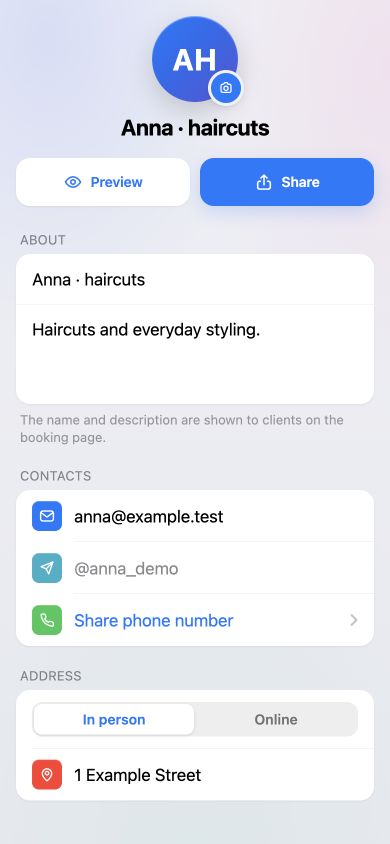
During initial setup, select Fill in profile. Enter your business name, a short description, contact details and appointment location. Follow the About, Contacts and Address steps, then select Create profile.
Our example
Anna · haircuts
Haircuts and everyday styling. The name tells clients who they’re booking with, and the description explains what you offer.
For in-person appointments, choose In person and enter the meeting location. For remote services, choose Online. Use contact details clients can actually reach you through.
To edit an existing profile, open Business → Profile. The name and description save when you leave the field; wait for the Saved message. Select Preview to see how your profile looks to clients.
Add a service and choose its schedule
Open Business → Schedule and check that you have a schedule for appointments. You can use the existing main schedule. If you need a new one, select New schedule and follow the setup steps. The number of schedules available depends on your plan.
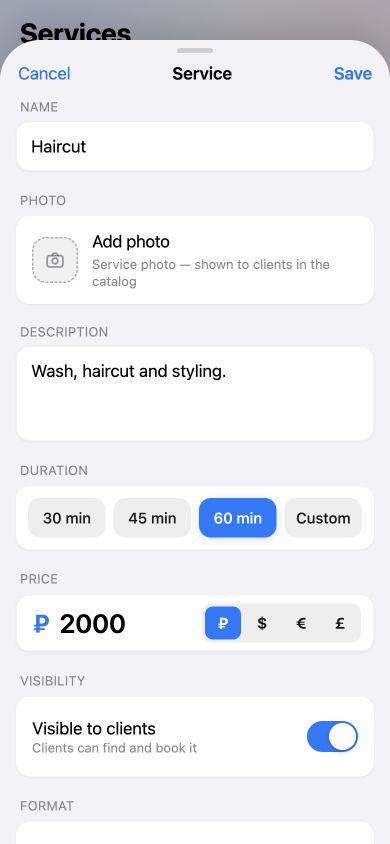
Next, open Services and select New service. Enter a name and description, then choose the duration and price. Our example is Haircut, 60 minutes, RUB 2,000. You can add a photo later.
Keep Visible to clients enabled, select the right schedule and choose Save. For one-to-one appointments, keep Group service off.
Set working hours and attach the service
In Schedules, open the schedule you want to use. Under When I work, select Repeat → Weekly. Our example uses the same working pattern each week.
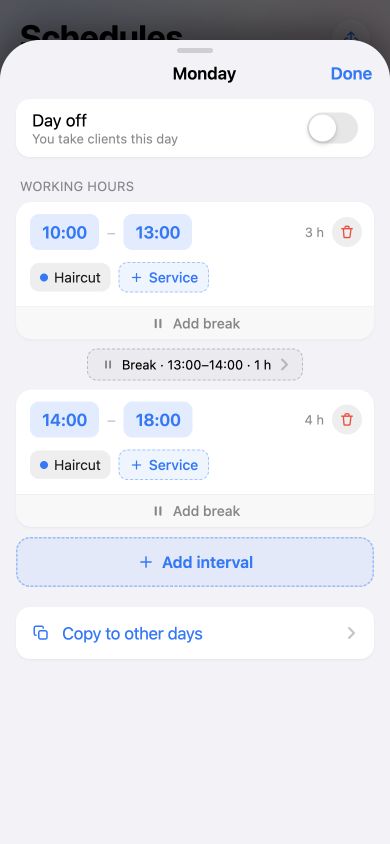
Open Monday and turn off Day off if it’s enabled. Set two intervals: 10:00–13:00 and 14:00–18:00. The gap becomes a one-hour break. You can edit both the intervals and the break in this panel.
Within each working interval, select + Service and choose Haircut. Make sure its name appears under both intervals.
Use Copy to other days to apply the hours to Tuesday through Friday. Copying replaces the selected days’ settings. Leave Saturday and Sunday as days off. Choose Done in the day panel and the repeat settings, then Save in the schedule editor.
Choose how bookings are confirmed
Open Confirmation in the schedule settings. The Auto-confirmation switch controls the main confirmation mode:
- Off — manual confirmation
- Every request waits for your decision. You approve it in the app or through the bot.
- On — automatic confirmation
- New bookings are confirmed immediately, subject to your configured rules. If no-show protection is enabled, some clients may still need manual approval.
After choosing, select Done and save the schedule. You can also review Phone required and Cancellation & rescheduling. These settings determine the details clients need to provide and whether they can change their own booking.
Check notification settings in the app and make sure the bot chat is available so you don’t miss requests. With manual confirmation, a submitted request is not yet a confirmed appointment.
Copy the link and test a booking
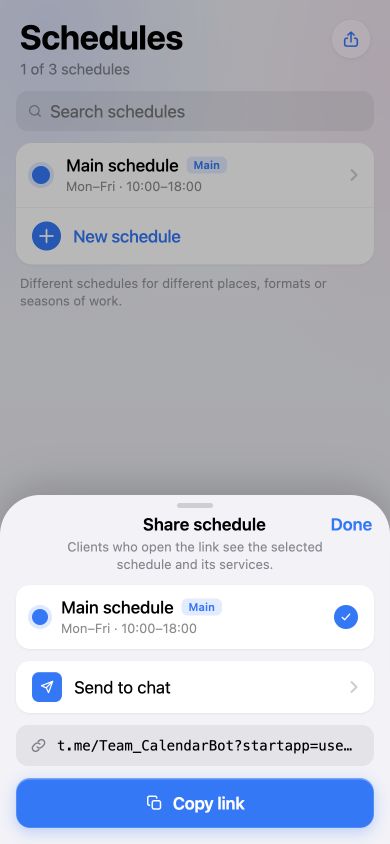
Return to the schedule list and select the Share schedule icon at the top. Choose the right schedule and select Copy link. Send to chat lets you choose a recipient in Telegram.
A link starting with t.me/Team_CalendarBot?startapp=… opens booking in Telegram. Share the copied link with clients: it points to the schedule you selected.
Before publishing the link, check it as a client, for example with another Telegram account. Make sure the profile and service are visible, there are available times and lunch can’t be booked. Create a test booking and find it under Bookings. If you use manual confirmation, approve the request and check the result on the client’s side.
Cancel the test booking when you’re done to free the time. You can now add the link to your profile or send it to clients in a conversation.
If clients can’t see available times
- Check that you selected the right schedule, that it is public and that it isn’t archived.
- Check Visible to clients on the service and make sure it is attached to the working intervals.
- Review days off and Exceptions: they can block the date or time you need.
- Make sure the opening fits the whole service, and check the schedule’s timezone.
- If the settings look right but booking is unavailable, contact support.
Ready for your first clients
Set up once.
Take bookings in Telegram.
Your profile, service and working hours are ready. Share the link you’ve tested and watch for new requests.
Open Booking Time