What you’ll have
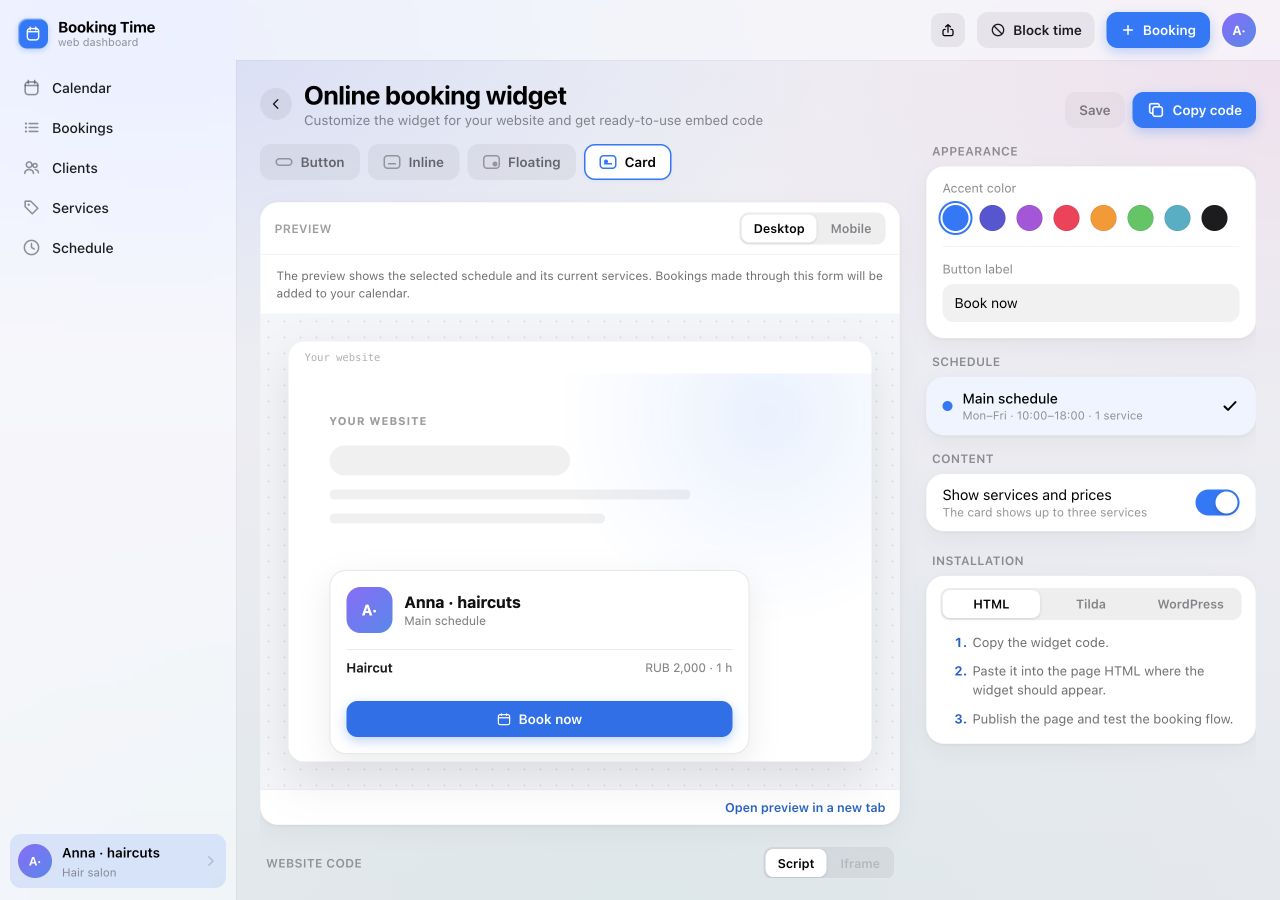
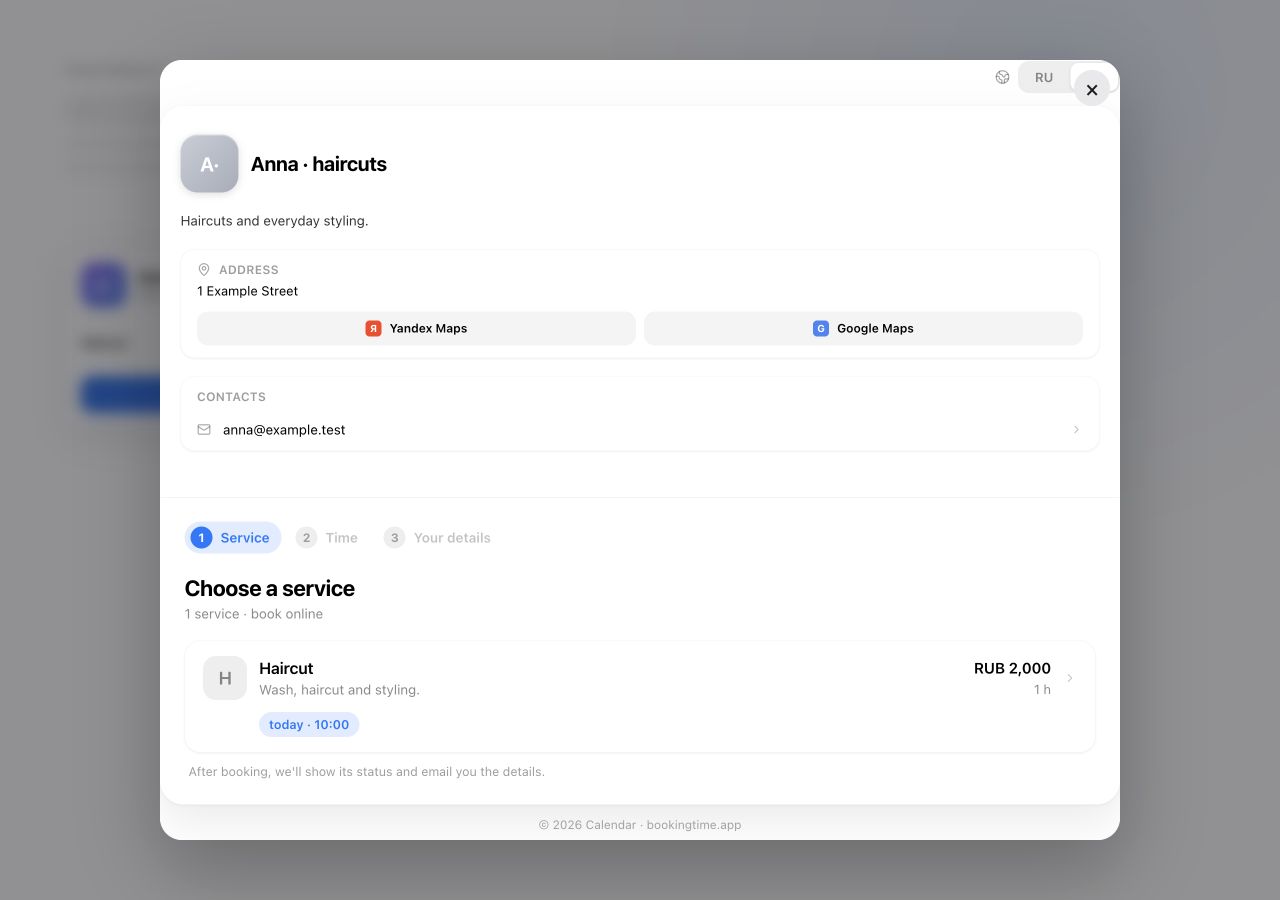
A card for Anna · haircuts on your website, showing a 60-minute service for RUB 2,000 and a Book now button. Selecting it opens a form to choose a service and time.
You’ll need a configured Booking Time schedule, access to edit your website and support for custom HTML. Website installation is included with Standard; customization and preview are free to try.
Prepare a public schedule
If you haven’t set up your business yet, start with the web dashboard guide or Telegram setup guide. The widget needs a business profile, a service visible to clients and working intervals with that service attached.
In the web dashboard, open Settings → Widget. Under Schedule, choose where website bookings should go.
The schedule must be public and not archived. If the list is empty, open Schedule and check the Public setting. Access by link alone is not enough for the widget.
Choose the right format
The editor offers four types. Choose one based on where clients should start booking:
- Button
- A compact button placed where you need it, for example below a service description. Selecting it opens the booking dialog.
- Card
- A block with your business name, schedule and button. It can show up to three services with prices. Useful in a Services or Contact section.
- Inline
- The booking form sits directly inside the page. Give it enough room for clients to choose a service and time comfortably.
- Floating
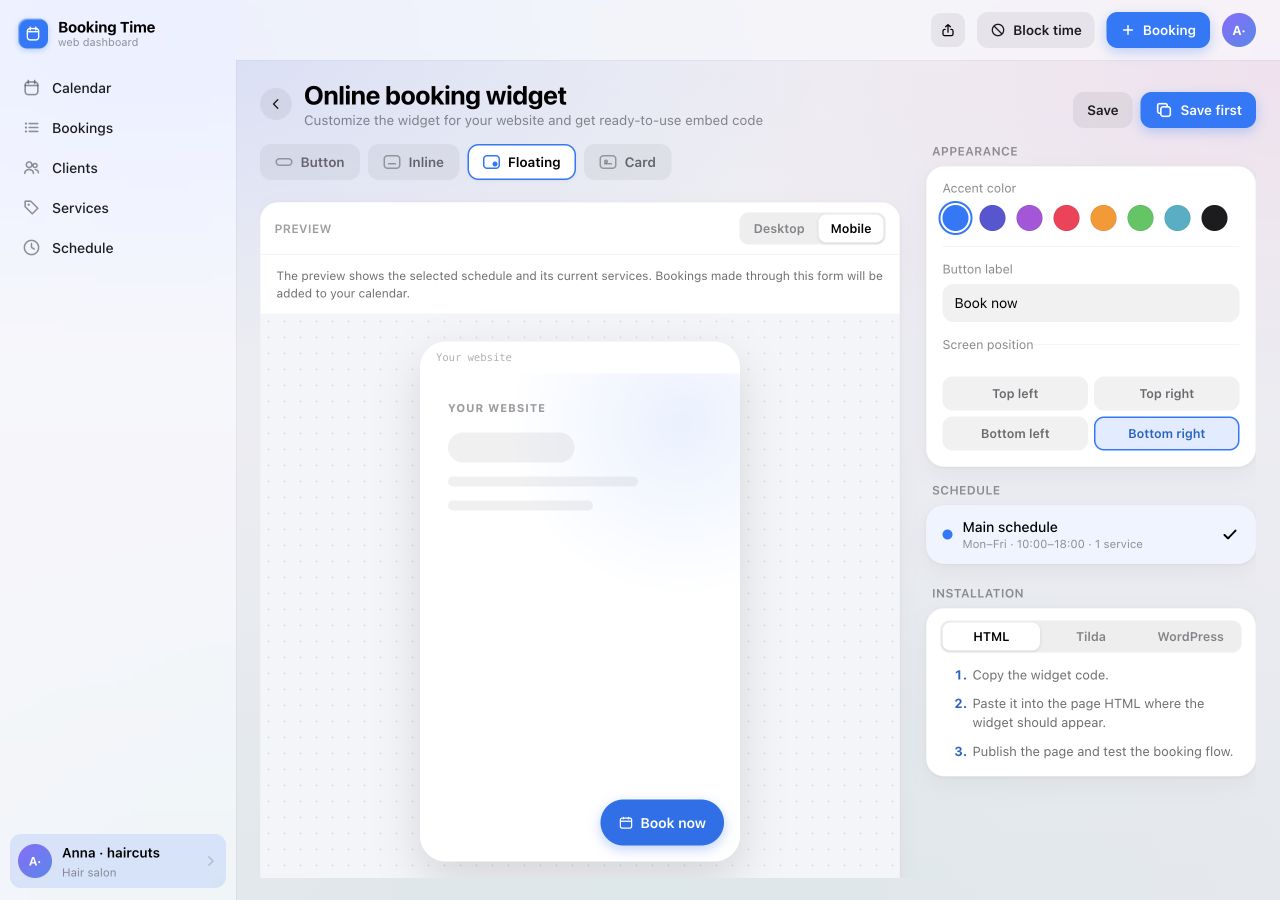
- A button in a chosen corner of the screen. Useful on long pages: booking stays within reach as visitors scroll.
For our example, select Card and keep Show services and prices enabled. The preview will show Haircut from the selected schedule.
Customize the appearance and check mobile
Under Appearance, choose an accent color from the palette and enter a short Button label, such as Book now. Labels can contain up to 40 characters.
For a card, choose whether to show services and prices. For a floating widget, select a Screen position: top or bottom, left or right. Keep it clear of support chats, menus and cookie banners.
Switch between Desktop and Mobile in the preview. Check the label length, card readability and button position. The screenshot below shows an alternative: a floating button at the bottom right.
Save your changes and copy the code
When you’re happy with the appearance, select Save. While there are unsaved changes, the copy control says Save first. Your website uses the saved version.
Under Website code, choose an installation method:
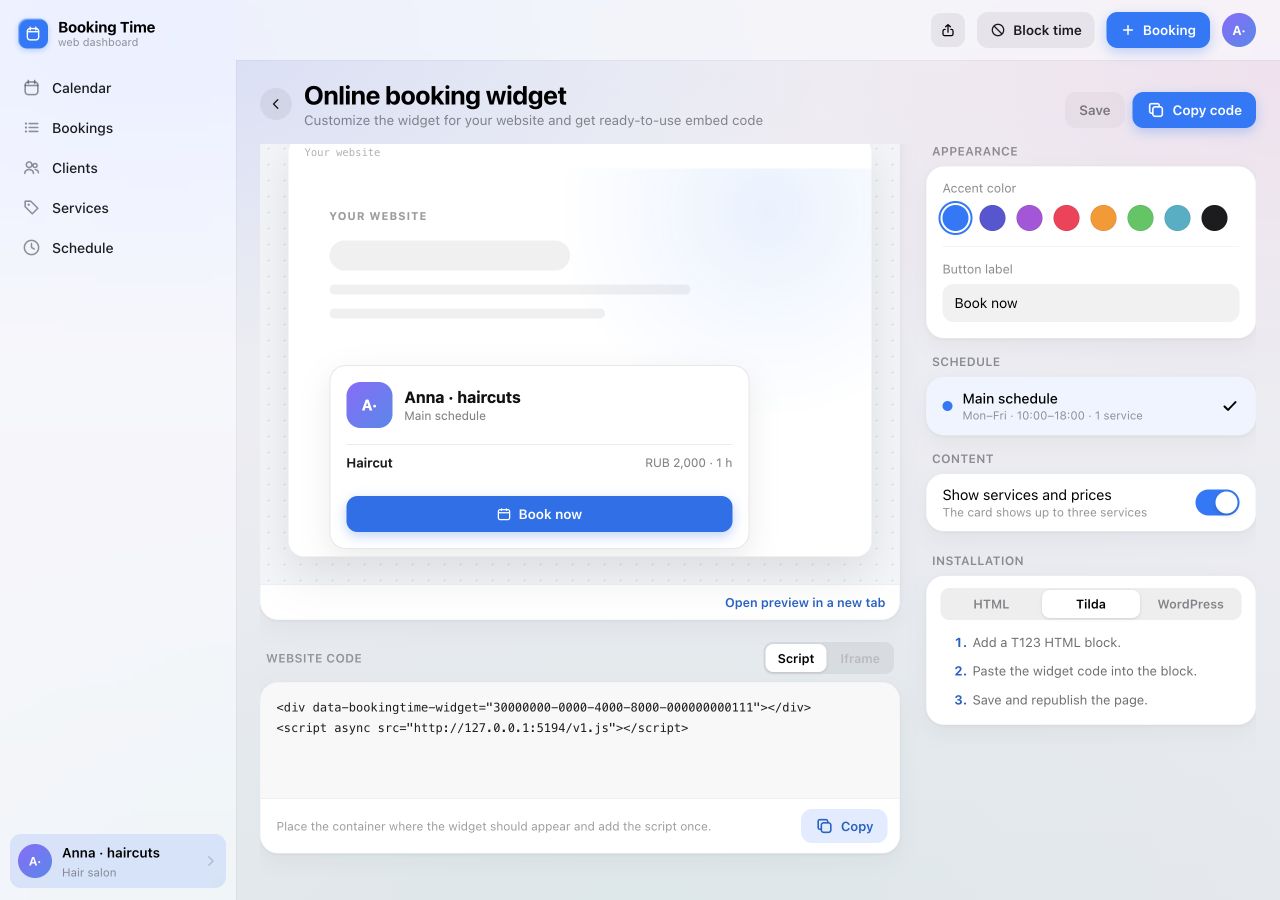
- Script — for Button, Card, Floating and Inline widgets. The code contains a container and a loader.
- Iframe — only for the Inline type. This is an alternative way to embed the form in your page.
Select Copy code at the top or Copy beside the snippet. If copying fails, select and copy the entire snippet manually.
For the same widget, appearance and schedule changes are saved under the same identifier. After saving, reload your website and check the result. If you change the embedding method, replace the snippet with the code shown in the editor.
Paste the code and publish the page
A regular HTML website
- Open the page HTML. Place the widget container where the button, card or form should appear.
-
Add the loader script from the same snippet once
per page. Keep the container and its
data-bookingtime-widgetattribute unchanged. - For Iframe, paste the entire generated snippet into the intended page block.
- Publish the changes and open the page at its normal address.
Tilda
- Add a T123 HTML block from the Other category.
- Paste the code from Booking Time into the block’s content.
- Save and republish the page. Check the published page: Tilda’s editing and preview modes may display the code as text.
See Tilda’s HTML embedding instructions for details.
WordPress
- Add a Custom HTML block in the page editor.
- Paste the widget code, update the page and open it outside the editor.
- If the script or iframe tag disappears after saving, ask your website administrator to check: user permissions and platform settings can restrict this code.
Editing fields vary by editor version. See the Custom HTML block documentation.
If a developer manages your website, send them the copied code and specify the pages and placement you want. For a floating widget, also tell them which screen corner you selected.
Test a booking on the published website
Open the website as a visitor on desktop and mobile. For Button, Card and Floating widgets, select Book now; the Inline form is already on the page.
- The correct business, service, price and duration are visible.
- Available dates and times appear; the lunch break cannot be booked.
- On mobile, controls fit the screen and the floating widget stays clear of other elements.
- The booking dialog opens and closes, letting visitors return to the page.
Make one test booking using your own contact details and find it in your dashboard. If you use manual confirmation, approve the request and check the client’s result. Then cancel the test booking to free the time.
The journey from service selection to confirmation is covered in How clients book an appointment. The widget uses the same booking system, and your schedule rules still apply.
If the widget is missing or bookings are unavailable
- Code is unavailable. Check your plan: installation is included with Standard. If the plan check failed, select Check again.
- The old appearance is still showing. Save changes in the dashboard and reload the page. If your website caches content, ask its administrator to refresh the cache.
- The widget doesn’t appear. Check the published page, the complete snippet and whether the script or iframe tag survived saving. Don’t use a preview URL in place of installation code.
- The schedule is unavailable. It may have been hidden or archived. Select a public schedule in the widget editor and save.
- No times are available. Check service visibility, its working intervals, days off and exceptions.
- The website blocks loading. Share the browser console message with your developer; restrictions on third-party scripts and embeds need to be checked in your website settings.
If you can’t find the cause, contact support with the page URL and a screenshot of the problem.
Online booking on your website
From a service on your page
to a booking in
your calendar.
Customize the widget, paste the code and check the client journey. Keep managing your schedule in the dashboard you already use.
Open web dashboard