What you’ll have
One service, a working schedule and a booking link. We’ll use a hairstylist who works on weekdays with a lunch break as our example.
Have your business name, service price and duration, and working hours ready.
Sign in and create your profile
Open the Booking Time web dashboard. Sign in with Telegram or a code sent to your email.
If you already use the Telegram Mini App, sign in with the same Telegram account to keep working with your existing data.
On your first visit, fill in your profile: a name, a short description and whether appointments take place at an address or online. Clients will see the name and description on your booking page.
For example
Anna · haircuts and styling
Women’s haircuts and everyday styling. I’ll help you find the right look and show you how to maintain it at home.
If you previously skipped this step, open Settings → Business profile.
Create your first schedule
Go to Schedule and select New schedule. Give it a name you’ll recognize, such as “Main appointments”.
If you already have a schedule, use that one. Make sure it’s public: clients can book appointments in public schedules.
Add your first service
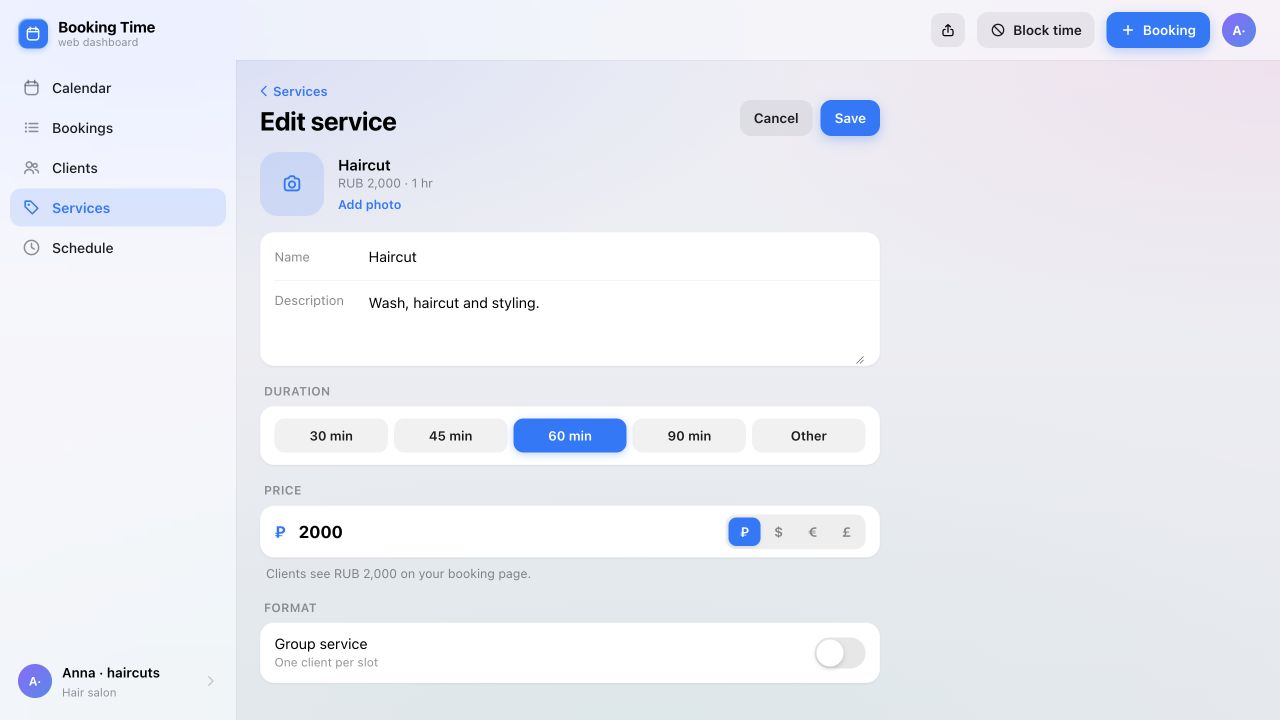
Open Services and create a service. One is enough to get started.
| Field | Example |
|---|---|
| Name | Haircut |
| Duration | 60 minutes |
| Price | 2,000 RUB |
| Schedule | Main appointments |
| Description | Consultation, wash, haircut and styling |
The duration should cover the entire appointment. If a haircut, wash and styling take an hour, enter 60 minutes. Use your own price and currency; the amount above is just an example.
Select the schedule you created, make sure the service is available for online booking, and save it.
Set your hours and attach the service
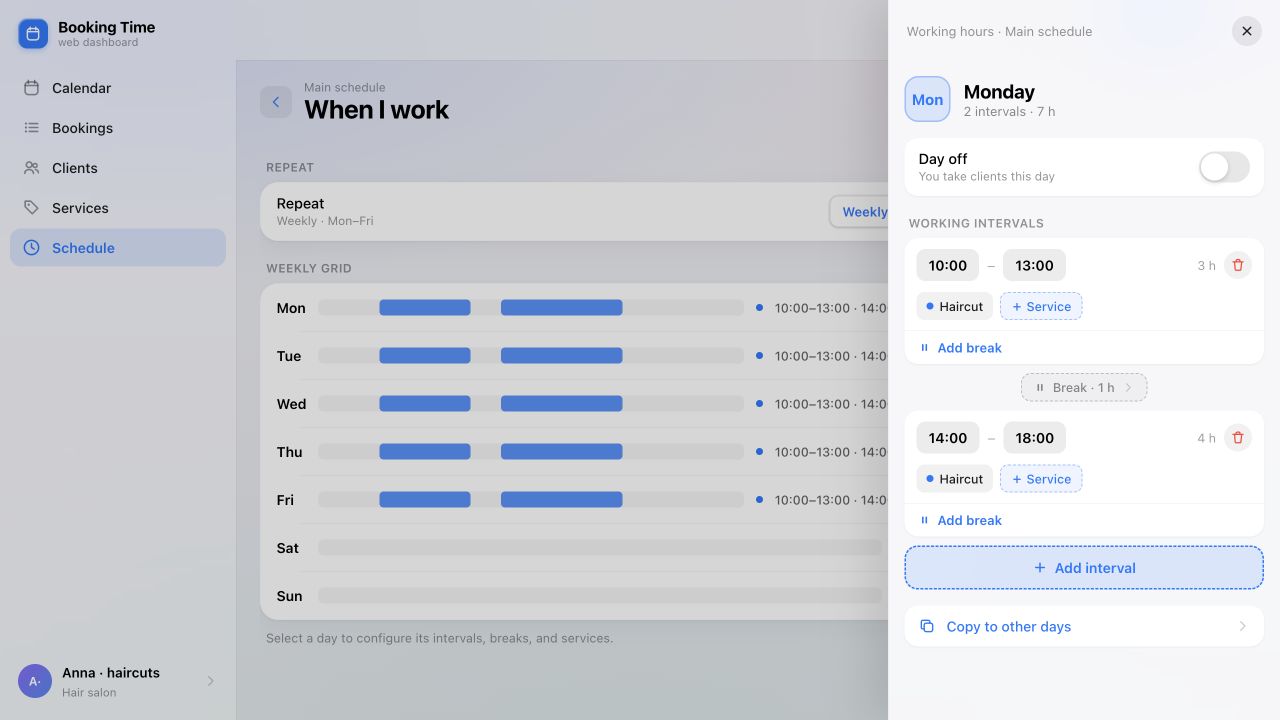
Return to Schedule and open your schedule. Open Working hours and services under When I work. On the weekly grid, select a day and configure its working intervals.
- Working days: Monday to Friday.
- Appointment hours: 10:00 to 18:00.
- Lunch break: 13:00 to 14:00.
Select “Haircut” for the working intervals on each day you want to take appointments.
Choose how to confirm bookings
Find Booking confirmation in your schedule settings.
- Manually
- Each request waits for your decision. Choose this if you need to check appointment details first.
- Automatically
- New bookings are confirmed immediately, subject to your configured rules. Choose this if clients can count on their selected time straight away.
Pick the option that fits the way you work.
Get your booking link
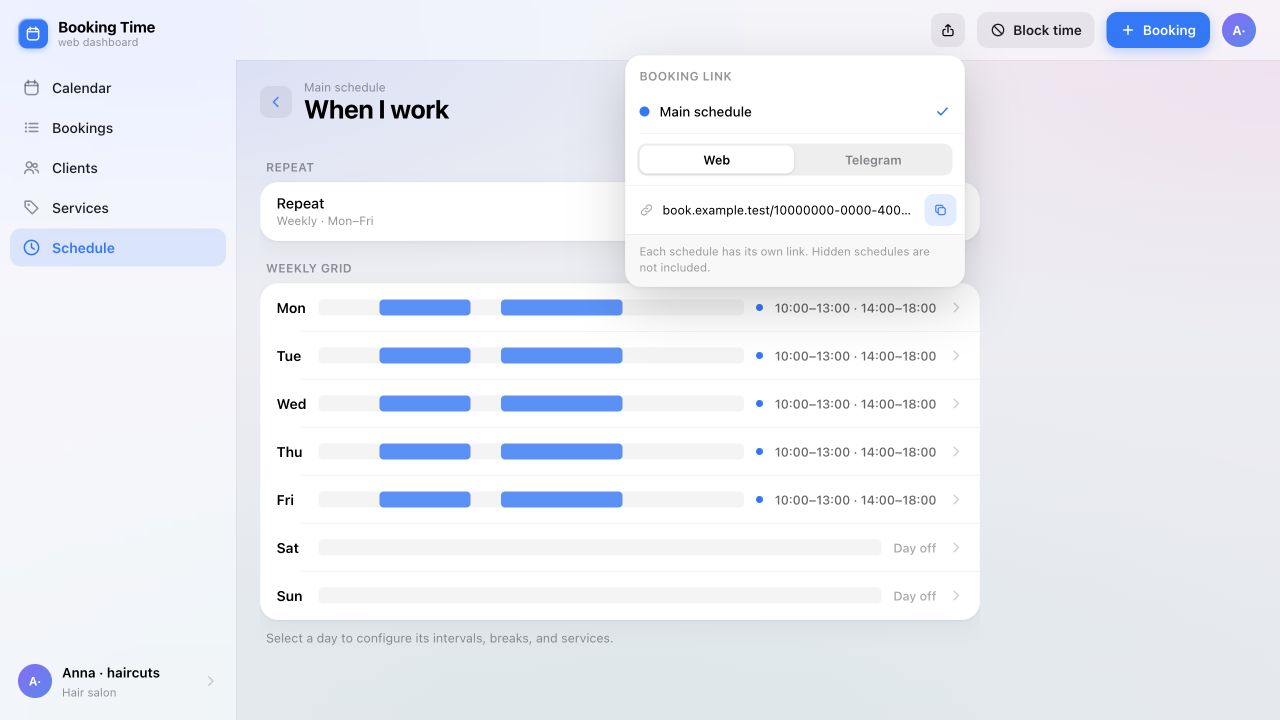
Select Share, choose your schedule and the Web option, then copy the link. Each schedule has its own link.
Open it and check the page as a client would:
- Your business name and description are clear.
- The service is visible, with the correct price and duration.
- Appointment times are available during your working hours.
- Your lunch break is unavailable for booking.
For a complete check, make a test booking with your own details and find it in the dashboard. If you chose manual confirmation, review and confirm the request.
You can now send the link in a message or add it to your profile. Clients can book in a regular browser — they don’t need Telegram.
If no times are available
Check these settings in order:
- The schedule is public and isn’t archived.
- The selected day has working intervals.
- The service is attached to those intervals and is available for online booking.
- The free interval is long enough for the whole appointment.
If everything is set up but booking still doesn’t work, contact support.
Ready for bookings
Your link is ready.
Time to share it.
Open the dashboard and follow these steps with your own schedule.
Open the dashboard