What you’ll achieve
You’ll be able to handle a pending request, reschedule an existing booking without a duplicate and cancel an appointment with a comment.
This guide shows the owner’s actions for an individual appointment: Alex · Haircut, 60 minutes, RUB 2,000. We’ll move it from 10:00 to 11:00 and cover cancellation as a separate case. You’ll need dashboard access and an existing booking in your schedule.
Find the right booking
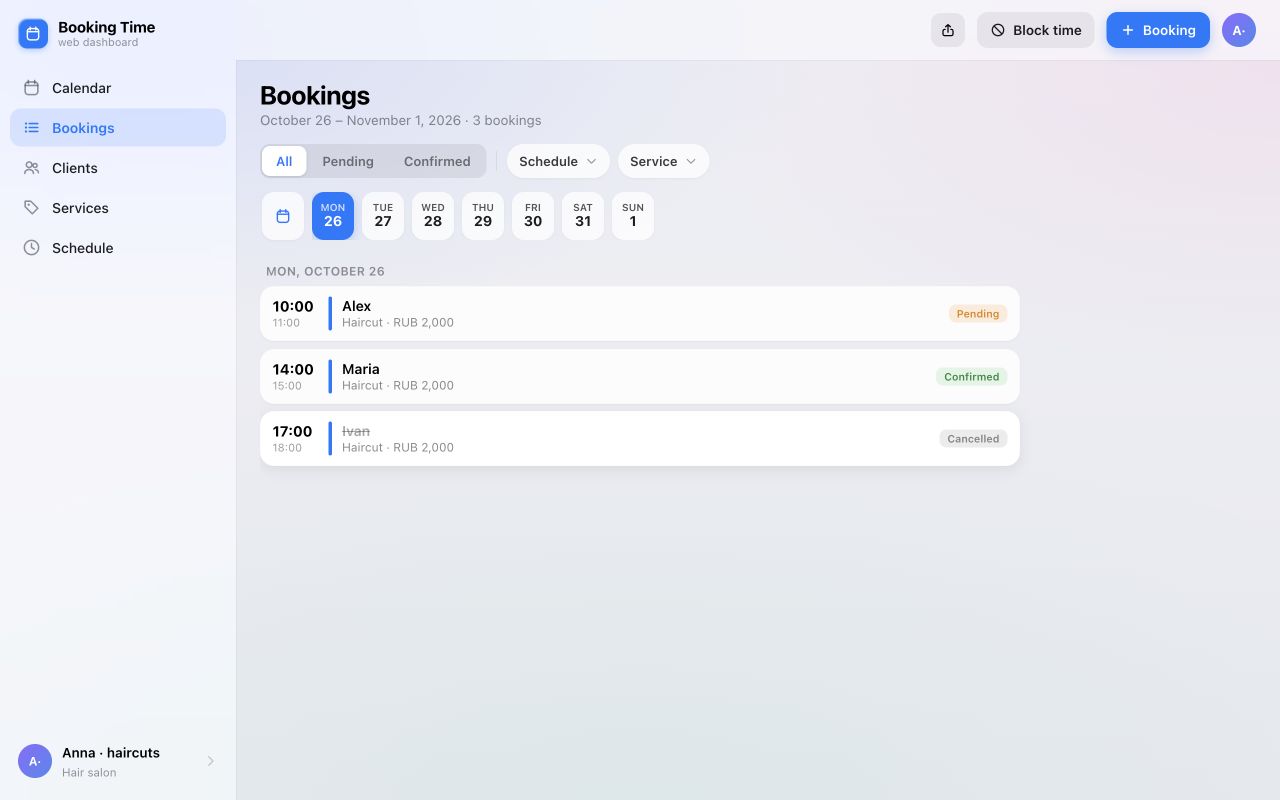
Open the web dashboard and go to Bookings. Use the calendar icon or the week strip to choose a date. Narrow the list with the Schedule and Service filters if needed.
Select Pending for requests awaiting a decision or Confirmed for agreed appointments. All helps you find a booking whose status has changed, including a cancelled one.
Select the client’s row. Check the name, service, schedule, date and time in the details panel. If the client has several appointments, this helps you change the right one.
Confirm or reject a request
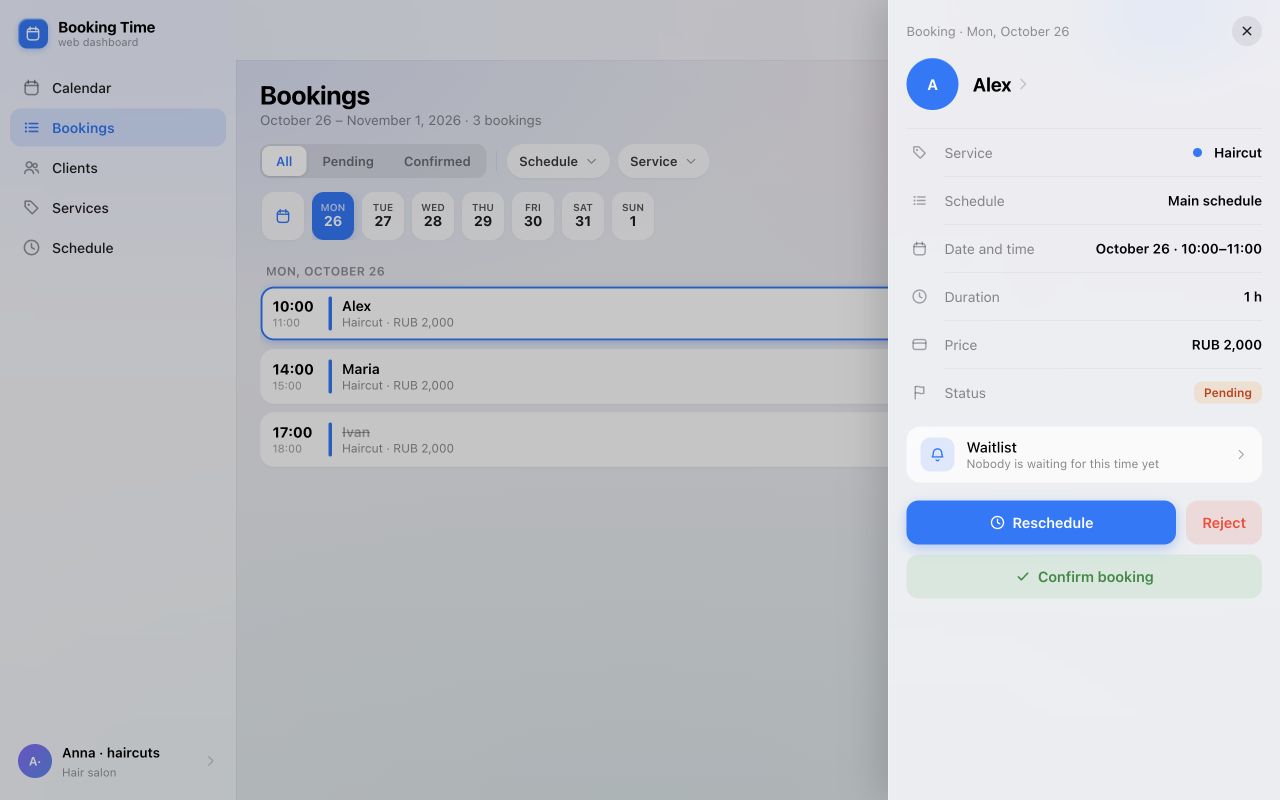
A request awaiting your decision has the status Pending. If you can accept it, select Confirm booking. Wait for the Booking confirmed message and the Confirmed status.
If you can’t accept the appointment, select Reject. Add a comment if useful and confirm your decision in the form. If you have agreed on a different time, use rescheduling: it is also available for a future pending request.
Reschedule the existing booking
Agree on a new time with the client first. Open the future booking’s details and select Reschedule.
- On the New time step, choose a day and an available start time. In our example, that is 11:00 instead of 10:00.
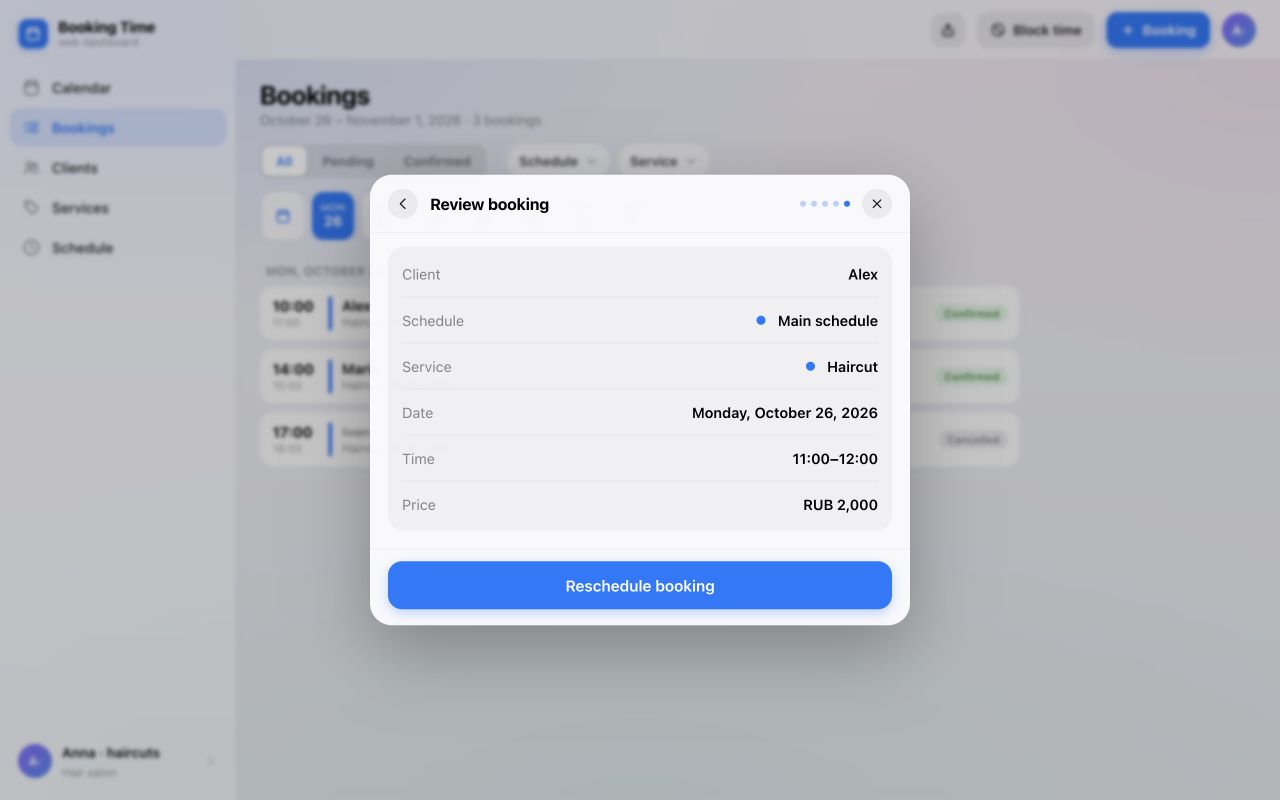
- On Review booking, check the client, schedule, service, date and full time range: 11:00–12:00 for a one-hour haircut.
- Select Reschedule booking. After the Booking updated message, check the new time in the details panel and list.
If you spot a mistake before saving, go back or close the dialog. Selecting a time alone does not complete the move; you must confirm it on the final step.
Cancel an appointment that won’t go ahead
Open a future confirmed booking and select Cancel. For a Pending request, use Reject instead.
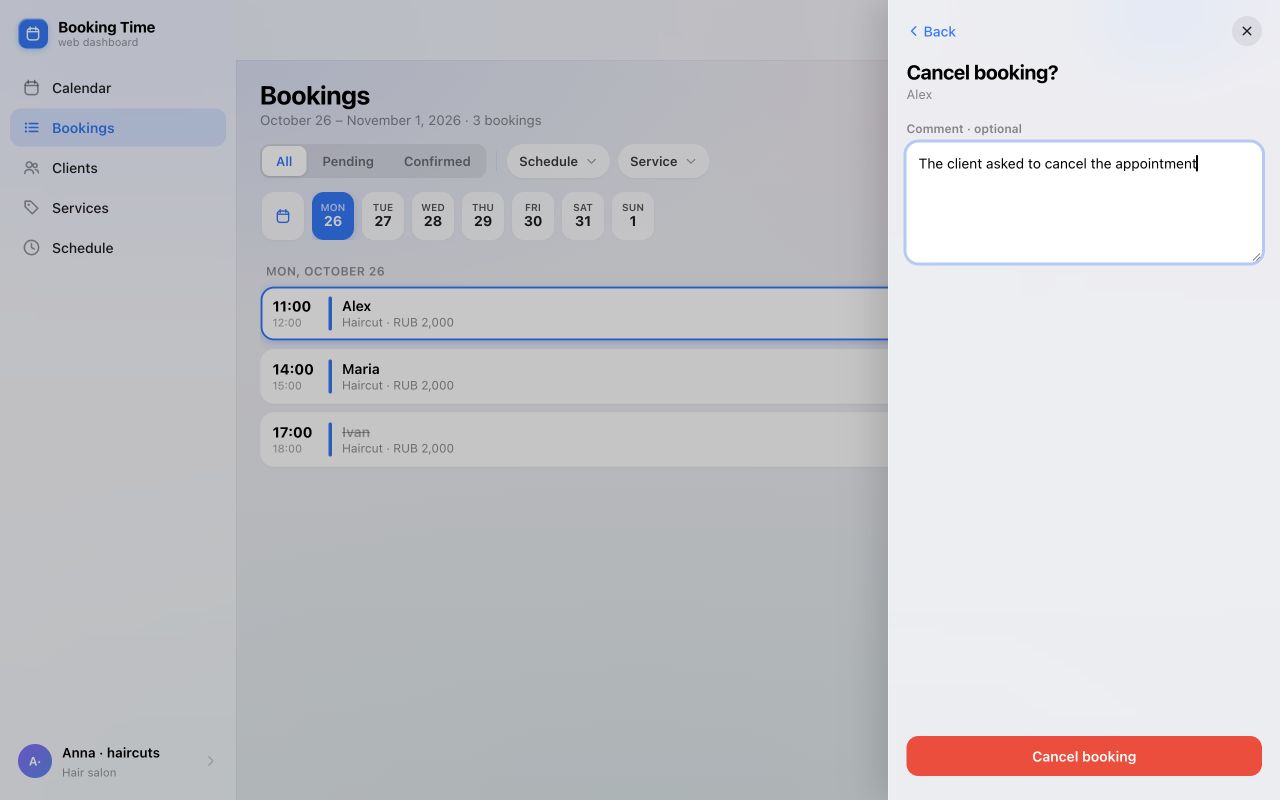
In the Cancel booking? form, check the client’s name. You can leave Comment · optional blank or briefly explain the reason, for example: “The client asked to cancel the appointment”.
Select Cancel booking and wait for the Booking cancelled message. If you change your mind before confirming, go back or close the form.
Check the status and your agreement with the client
Return to the list and select All. After rescheduling, check the new day and time; after cancelling, check for Cancelled. A cancelled booking remains in the list rather than being deleted.
Filters explain many “missing” bookings: a confirmed request no longer matches Pending, and a cancelled appointment no longer matches Confirmed. If you moved the booking to another date, open that date.
Can clients change bookings themselves?
Yes, if your schedule rules allow it. Clients use the personal management link in their confirmation email. Available actions depend on how soon the appointment starts and the permitted number of reschedules.
Before promising that a client can change a booking at any time, check your schedule rules and the actions available to them. The client booking guide explains that side of the process.
If an action is unavailable
- Confirm booking is missing. Check the status: this action is for a pending individual request, not an already confirmed appointment.
- Reschedule or Cancel is missing. This workflow requires a future active booking with no attendance recorded. Check the start time and schedule timezone. Pending requests have Reject instead of Cancel.
- No suitable times are available. Choose another day and check working intervals, days off, exceptions and service availability. Rescheduling offers available options.
- Rescheduling failed. The time may no longer be available. Refresh the data, check the current booking and select an available option again.
- The booking is missing from the list. Check the date, select All and clear unnecessary schedule and service filters.
This guide covers individual appointments. Group sessions use different participant actions. If you can’t identify the problem, contact support with the action, date and error message.
Day-to-day management
Plans change.
Keep your schedule up to date.
Confirm a request, agree on a new time or cancel an appointment, then check the result in the booking details.
Open web dashboard