What you’ll achieve
Clients can wait for a specific busy time, and you can pass it to the first person in the queue when an appointment is cancelled.
Example: Alex has a haircut booked on October 29, 12:00–13:00. Maria and Vera are waiting for that time. Alex cancels, and you pass the opening to Maria. This guide covers individual appointments; you’ll need a configured schedule and the Standard plan.
Enable the waitlist for your schedule
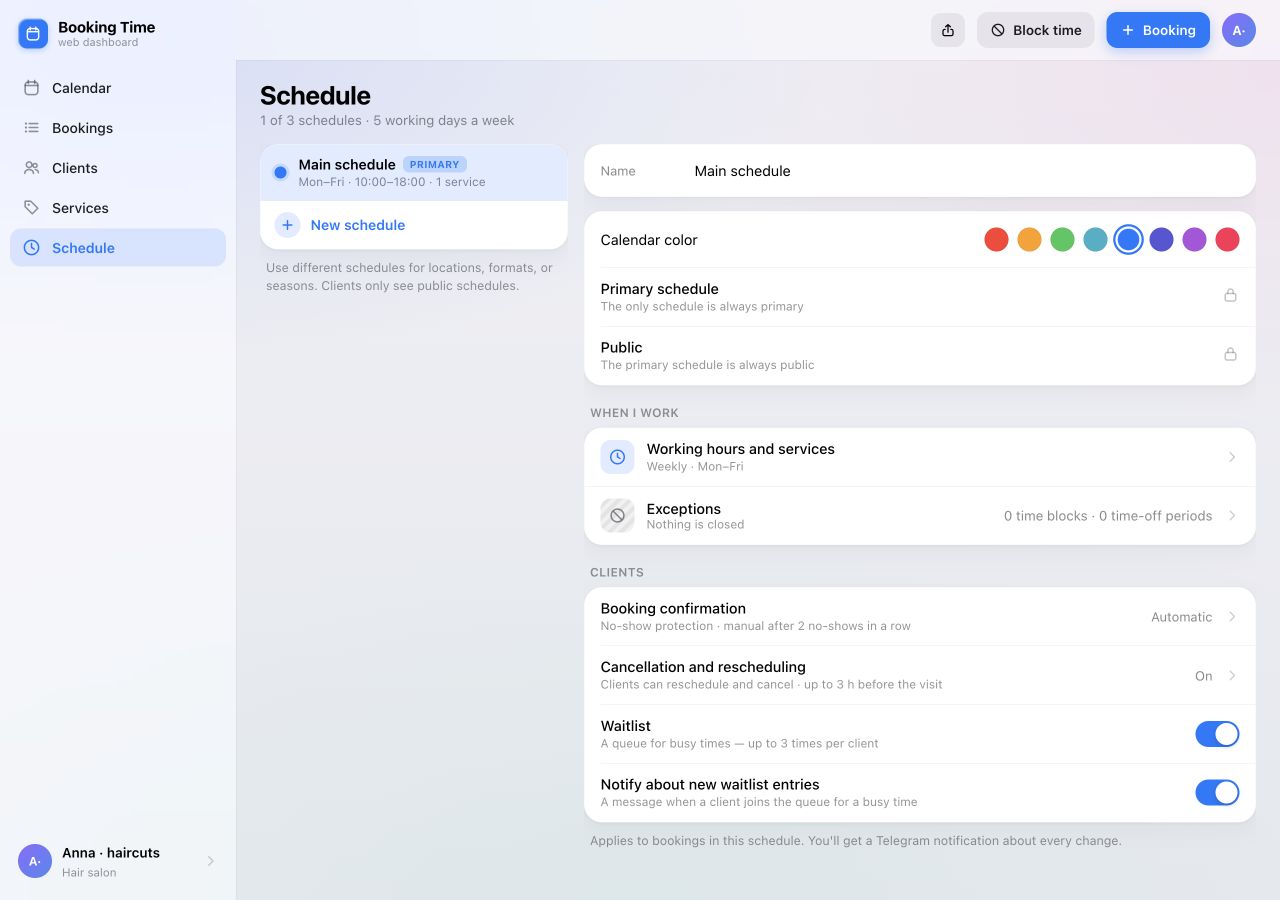
In the web dashboard, open Schedule and select the schedule you use for appointments. Under Clients, turn on Waitlist. The setting saves when you toggle it.
You can also enable Notify about new waitlist entries to hear when someone starts waiting for a busy time. This is a separate setting: it controls notifications to you, not whether clients can join.
The waitlist is included with Standard. If a plan restriction appears instead of the switch, check your subscription. For first-time setup, follow the web dashboard guide to prepare services and working hours.
Explain how clients join the queue
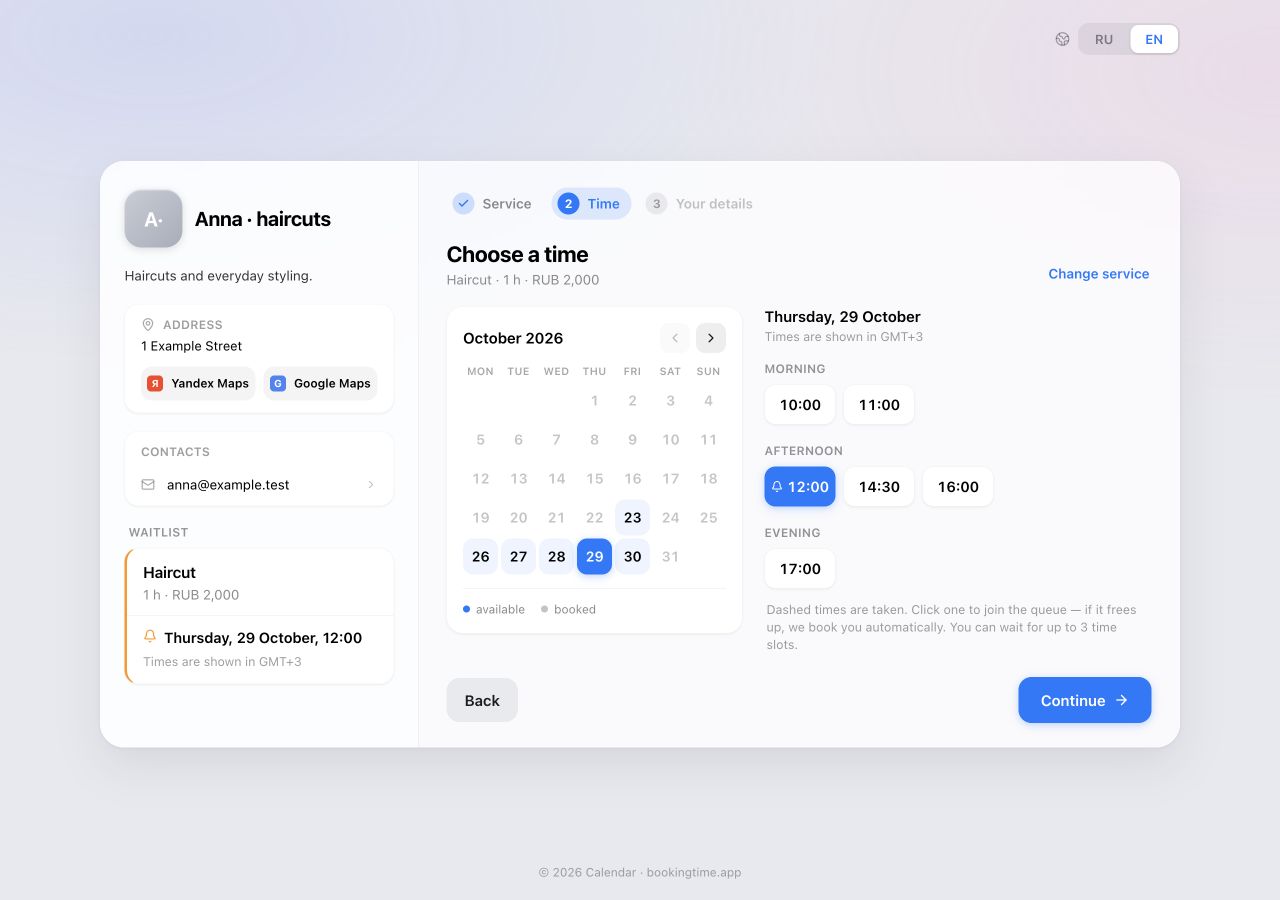
A client opens your booking link, chooses a service and selects a date. On Choose a time, taken times have dashed outlines. When the waitlist is enabled, the client can select a time that is available to join.
- Select a taken time, such as 12:00. A Waitlist section appears in the summary.
- Select Continue, enter contact details and review the consent fields.
- Select Join the queue. On “You’re in the queue”, check the chosen time and position.
The current interface allows waiting for up to three time slots at once; the available limit appears below the options. If the client waits for several times, the system books the first one that becomes available and removes them from the other queues.
See who is waiting for the time
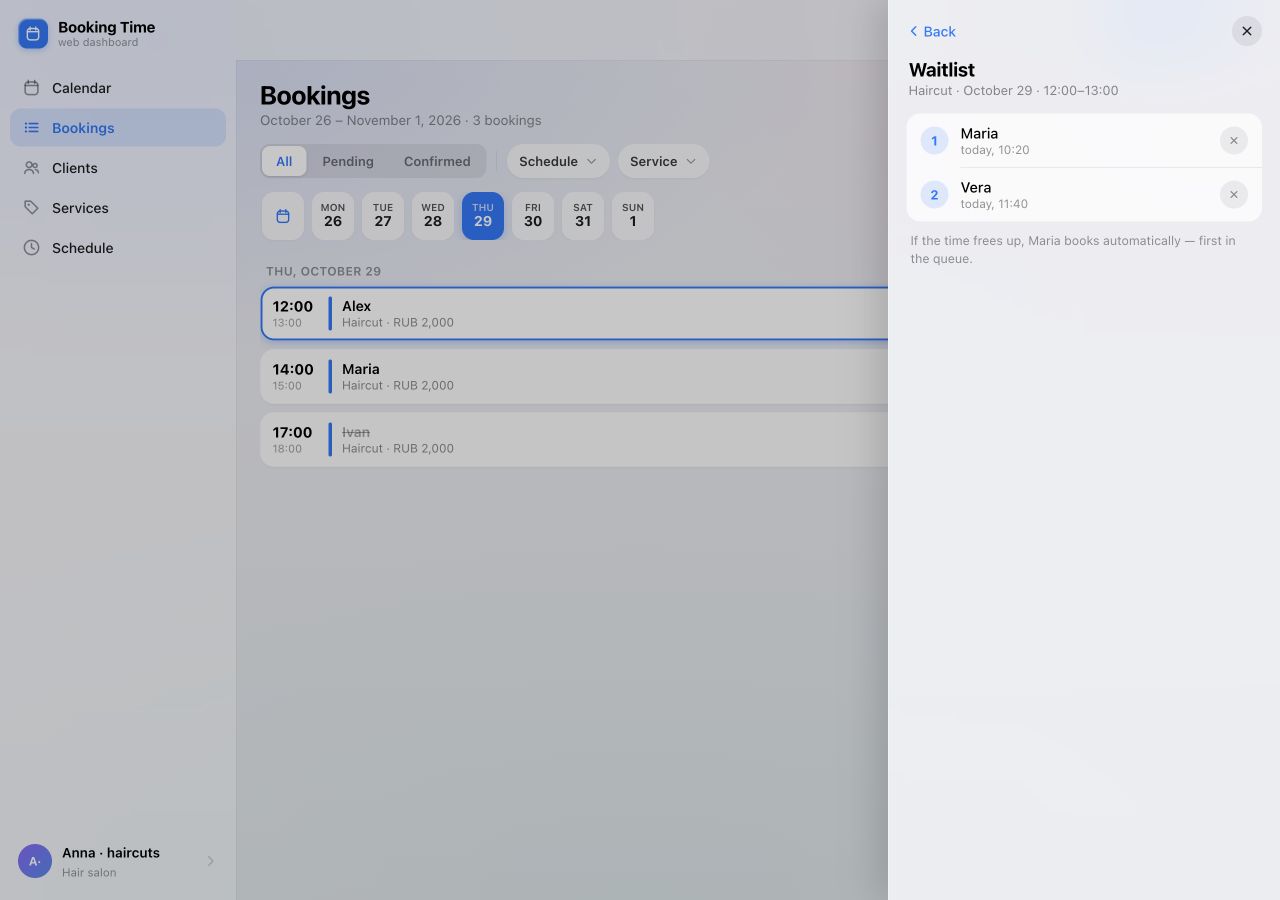
Open Bookings, select the day and open the occupied appointment. Its Waitlist section shows the number of people waiting. Select it to open the queue.
The panel shows the service, date, full time range, client names, queue positions and joining times. In our example, Maria is first and Vera is second. The explanation below the list names the person who will be booked automatically when the time becomes available.
The cross beside a person is Remove from the queue. Use it if that client no longer wants the time; removing them sends a notification. It is not a button for choosing who gets the appointment.
Enable the handover when cancelling
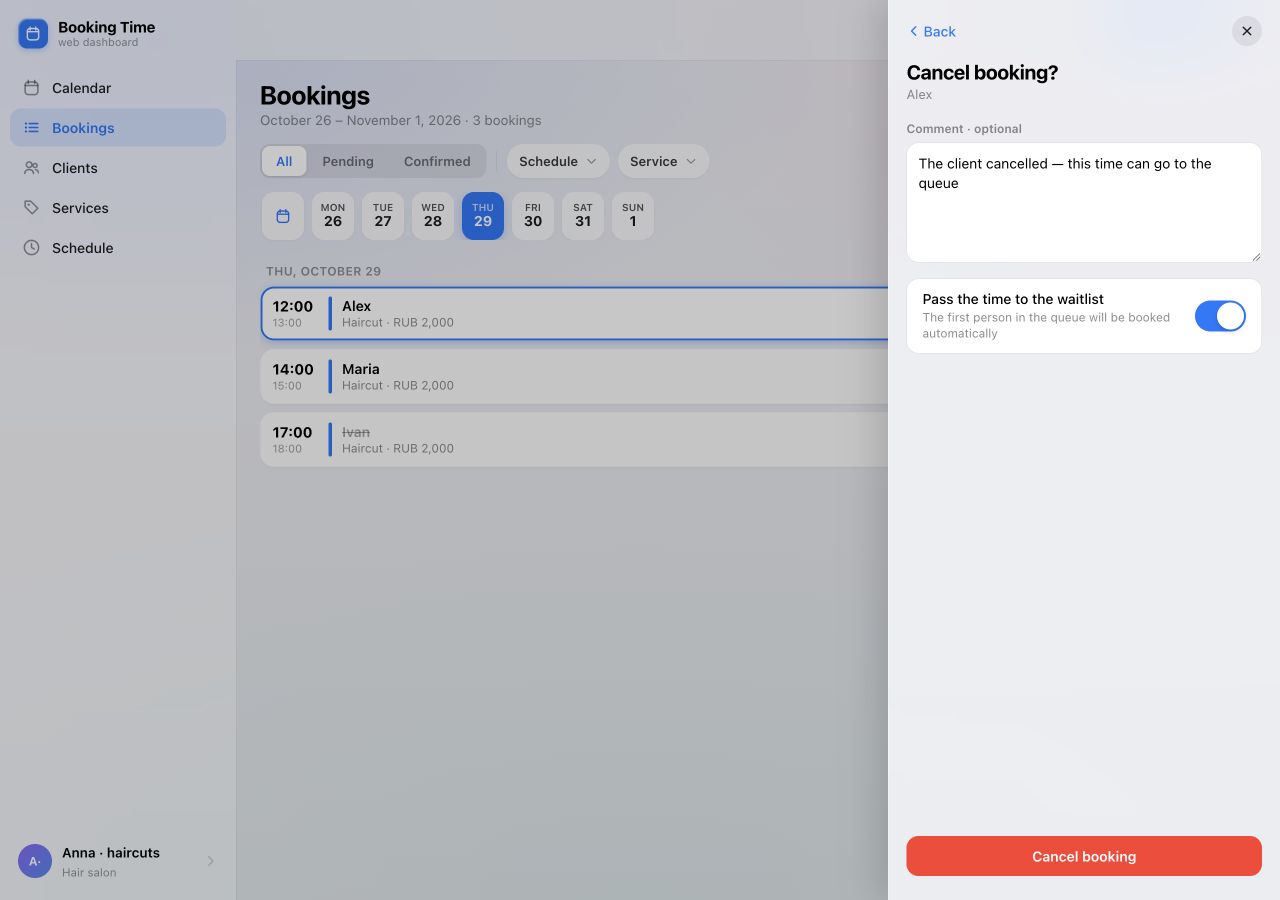
If the appointment is cancelled and you can still see another client at that time, return from the waitlist to the booking details. For a future confirmed booking, select Cancel.
- In Cancel booking?, check the client’s name. Add a comment if useful.
- Turn on Pass the time to the waitlist. The explanation should say: “The first person in the queue will be booked automatically”.
- Select Cancel booking and wait for the result. Toggling the switch alone does not complete the action; it applies when you confirm cancellation.
For a request that has not been confirmed, use Reject. If there is a queue for its time, the decision form also lets you allow the handover.
What if you leave the switch off?
The queue for that time closes and the people waiting are notified. This does not pause the queue. Read the explanation below the switch before confirming; it describes the consequence of your choice.
Check who received the appointment
After cancelling, open that date in the bookings list and select All. Check that the previous appointment is Cancelled and a booking for a client from the queue has appeared at the freed time. Verify the name, service and time range.
Automatically creating a booking from the waitlist does not override the schedule’s confirmation rules. If the new booking is Pending, handle it like a regular request. See the guide to confirming, rescheduling and cancelling bookings.
If a booking from the waitlist is cancelled again
When the owner cancels or rejects a booking that itself came from the waitlist, the remaining queue for that time closes. The form shows an explanation instead of the switch. Do not expect that cancellation to automatically pass the appointment to the next person.
If the outcome is unclear, refresh the list and check the booking’s state before repeating the action or adding an appointment manually.
If the queue does not behave as expected
- A taken time cannot be selected. Check Standard access, the waitlist setting for that schedule and the client’s remaining limit. They may already be in that queue.
- The time is missing entirely. A waitlist does not create working hours. Check service availability, working intervals and exceptions for the date.
- The handover switch is missing. The queue may be empty. If the booking came from the waitlist, the form explains that the queue will close instead of showing a switch.
- The new booking is Pending. Schedule rules can require confirmation. Review the details and confirm or reject the request.
- A client no longer wants to wait. They can leave via the email link, or the owner can remove them from the waitlist panel.
- The queue failed to load. Retry loading it. Do not rely on an old queue order while the panel shows an error.
Group session workflows differ from the individual appointments in this example. For help, contact support with the date, time and action that failed.
Day-to-day management
A time slot opens up.
Someone may already be
waiting.
Check the queue, enable the handover when cancelling and make sure the new booking appears in your schedule.
Open web dashboard